
In the realm of mechanical design, especially during the detailed phase of creating production drawings, a significant amount of time is consumed by the drafting of standard components and common transmission assemblies. While essential, this manual drafting process is repetitive, prone to human error, and distracts from the more creative and complex aspects of structural design. The advent and integration of parametric design principles within mainstream CAD software offer a potent solution to this inefficiency. This article details a first-person perspective on developing and implementing a parameterized drawing system specifically for worm gears assemblies within AutoCAD assembly drawings. The core of this system is built upon AutoLISP, the embedded artificial intelligence and automation language within AutoCAD, which provides a robust yet accessible platform for customizing and extending the software’s capabilities to meet specific design workflow needs.
The primary objective of our development was to create a tool that allows a designer, when working on a larger assembly drawing (such as a gearbox or a conveyor drive), to generate accurate and compliant 2D representations of worm gears drives instantaneously. Instead of searching through block libraries or drawing from scratch, the designer simply inputs the fundamental geometric and operational parameters. The system then calculates all derived dimensions, applies standard rules from mechanical design handbooks, and executes the AutoCAD drawing commands to produce the views. This method ensures consistency, adherence to standards, and a dramatic reduction in drafting time for these common elements. The focus is on the application within an assembly context, meaning the program must be non-intrusive—it should not alter the existing drawing environment’s layers, styles, or settings unpredictably. The generated geometry must be ready for integration, with the designer retaining full control for any final adjustments.
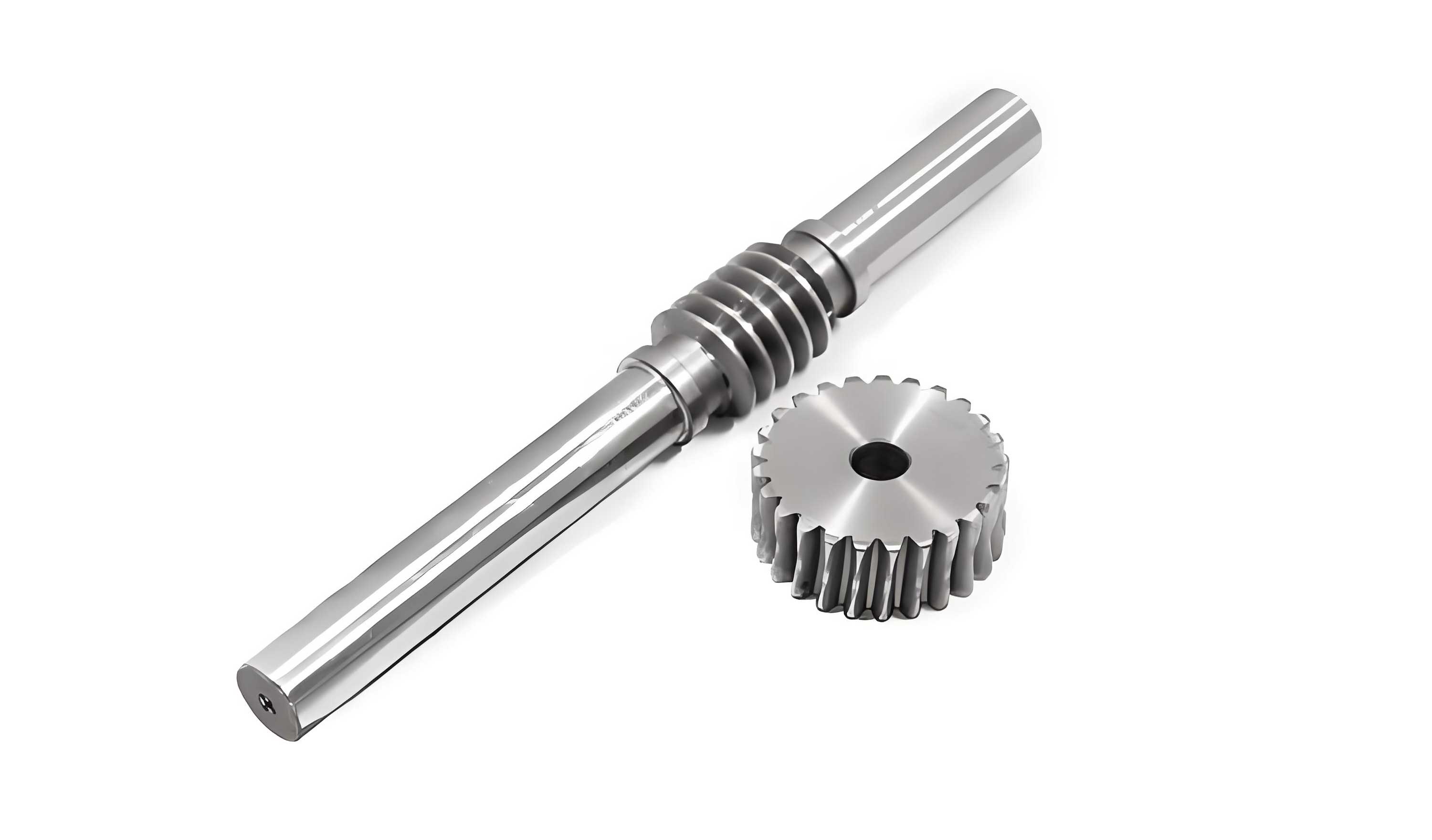
System Architecture and Design Workflow
The architecture of the parameterized drawing system for worm gears is modular, following a logical sequence from user interaction to final geometry generation. The system comprises several integrated components: a Dialog Control Language (DCL) interface for user input, the core AutoLISP driver program containing the mathematical model and control logic, drawing function libraries for each view, and a custom menu for easy access. The high-level workflow is illustrated in the figure below and can be summarized in the following steps:
| Step | Component | Description |
|---|---|---|
| 1. Initiation | Custom Menu (CUI) | User selects the type of worm gear assembly to draw from a customized pull-down menu within AutoCAD. |
| 2. Interaction | DCL Dialog Box | A graphical dialog box appears, prompting the user to input key design parameters and a drawing insertion point. |
| 3. Processing | AutoLISP Driver | The program validates input, calls the mathematical model to compute all dimensions, and manages the drawing environment. |
| 4. Execution | Drawing Functions | Specific functions draw entities (lines, arcs, hatches) to construct the front and sectioned side views. |
| 5. Completion | AutoCAD Graphics | The fully drawn worm and worm wheel views are displayed in the model space, ready for use in the assembly. |
The critical philosophy here is separation of concerns. The dialog box handles only data acquisition, the driver contains the business logic and engineering rules, and the drawing functions are purely geometric executors. This makes the system maintainable and extendable; for instance, adding a new type of worm profile primarily involves introducing a new mathematical model and drawing function, while the dialog and driver structure can often be reused.
Mathematical Foundation and Parameter Definition
The parameterization of worm gears hinges on a well-defined set of input parameters from which all other geometric features are derived. For a standard cylindrical worm gear set, the primary user inputs are defined below, along with the standard notation.
| Symbol | Parameter Name | Description |
|---|---|---|
| $m$ | Axial Module | Module of the worm in the axial plane, equal to the worm wheel’s transverse module (standard value). |
| $z_1$ | Number of Worm Threads (Starts) | The number of helical threads on the worm (typically 1, 2, 3, or 4). |
| $z_2$ | Number of Worm Wheel Teeth | The count of teeth on the worm wheel. |
| $q$ | Diameter Factor | A defining parameter for the worm: $q = d_1 / m$, where $d_1$ is the worm reference diameter. |
| $\alpha$ | Pressure Angle | Standard pressure angle (e.g., 20°). Often a fixed value in the program. |
| $d_m$ | Wheel Bore Diameter | Diameter of the central hole in the worm wheel. |
From these inputs, the system automatically calculates a comprehensive set of dimensions necessary for drafting. The formulas are based on standard mechanical engineering design principles for worm gears. Key calculations include:
Worm Geometry:
- Reference (Pitch) Diameter: $$d_1 = m q$$
- Addendum: $$h_{a1} = m$$
- Dedendum: $$h_{f1} = 1.2m$$
- Tip Diameter: $$d_{a1} = d_1 + 2h_{a1} = m(q + 2)$$
- Root Diameter: $$d_{f1} = d_1 – 2h_{f1} = m(q – 2.4)$$
- Lead Angle: $$\gamma = \arctan\left(\frac{m z_1}{d_1}\right) = \arctan\left(\frac{z_1}{q}\right)$$
- Threaded Length ($L$): A simplified design rule is applied based on $z_1$:
$$ L = \begin{cases}
16m & \text{for } z_1 = 1, 2 \\
20m & \text{for } z_1 = 3, 4
\end{cases} $$
Worm Wheel Geometry:
- Reference (Pitch) Diameter: $$d_2 = m z_2$$
- Addendum: $$h_{a2} = m$$
- Dedendum: $$h_{f2} = 1.2m$$
- Tip Diameter (Throat Diameter): $$d_{a2} = d_2 + 2h_{a2} = m(z_2 + 2)$$
- Root Diameter: $$d_{f2} = d_2 – 2h_{f2} = m(z_2 – 2.4)$$
- Face Width ($b$): Another empirical rule is used:
$$ b = \begin{cases}
0.75 d_{a1} & \text{for } z_1 = 2, 3, 4 \\
0.67 d_{a1} & \text{(for other cases)}
\end{cases} $$
Assembly Geometry:
- Center Distance: This is a critical assembly parameter calculated as:
$$ a = \frac{d_1 + d_2}{2} = \frac{m(q + z_2)}{2} $$
These formulas constitute the mathematical engine of the program. When a user provides $m$, $z_1$, $z_2$, and $q$, the AutoLISP code computes all these values, storing them as variables. These variables then directly control the coordinates and dimensions used in the subsequent drawing commands.
Program Implementation: Dialog, Driver, and Drawing
The implementation bridges the gap between the mathematical model and the final CAD geometry. It involves three key technical parts: creating an intuitive interface, writing the core logic, and generating the graphics.
1. User Interface with DCL
To make the tool user-friendly and prevent errors from command-line input, a dialog box is created using AutoCAD’s Dialog Control Language (DCL). The DCL file defines the layout, text labels, and input fields (edit boxes). A key feature is the inclusion of a “Screen Pick” button, allowing the user to graphically select the insertion point in the drawing area. The structure is hierarchical, organizing parameters into logical groups.
// Sample DCL structure for parameter input
ptwg : dialog {
    label = "Enter Worm Gear Parameters";
    : column {
        : edit_box { label = "Axial &Module (m):"; key = "m_box"; }
        : edit_box { label = "Worm &Starts (z1):"; key = "z1_box"; }
        : edit_box { label = "Wheel &Teeth (z2):"; key = "z2_box"; }
        : edit_box { label = "Diameter &Factor (q):"; key = "q_box"; }
        : boxed_column {
            label = "Insertion Point";
            : edit_box { label = "&X:"; key = "x_box"; }
            : edit_box { label = "&Y:"; key = "y_box"; }
            : button { label = "Pick on Screen <"; key = "pick_btn"; }
        }
    }
    ok_cancel;
}
2. Core AutoLISP Driver Program
The main LISP program loads the DCL, manages the dialog interaction, houses the calculation routines, and orchestrates the drawing process. Crucially, it includes robust environment management to ensure it behaves politely within a host assembly drawing.
(defun C:WGEN (/ id dcl_ret m z1 z2 q pt0)
  ; Load the dialog file
  (setq id (load_dialog "worm_params.dcl"))
  (if (not (new_dialog "ptwg" id)) (exit))

  ; Set initial tile values and actions
  (action_tile "pick_btn" "(get_point)") ; Function to pick point from screen
  (action_tile "accept" "(get_data) (done_dialog 1)") ; On OK, get data and close

  ; Display dialog and wait for user action
  (setq dcl_ret (start_dialog))
  (unload_dialog id)

  (if (= dcl_ret 1)
    (progn
      ; SAVE original drawing settings
      (setq osmode_bak (getvar "OSMODE")
            clayer_bak (getvar "CLAYER"))

      ; TURN OFF settings that could interfere with automated drawing
      (setvar "OSMODE" 0) ; Disable object snap
      (command "_.UNDO" "_Begin")

      ; CALL THE MATHEMATICAL MODEL FUNCTION
      (calculate_dimensions m z1 z2 q)

      ; CALL DRAWING FUNCTIONS with calculated data and insertion point
      (draw_worm_side_view pt0)
      (draw_wheel_front_section pt0)

      ; RESTORE original drawing settings
      (command "_.UNDO" "_End")
      (setvar "OSMODE" osmode_bak)
      (setvar "CLAYER" clayer_bak)
    )
  )
  (princ)
)
The environmental management is vital. The program saves the current object snap (OSMODE) and current layer (CLAYER) settings, turns off snaps to prevent unintended point acquisitions, and wraps the drawing commands in an UNDO group. This means the entire generated worm gear set can be undone with a single “U” command, and the user’s drawing environment is restored exactly as it was before the tool ran. The layer switching is also done cautiously, checking if a layer like “Continuous” exists before setting it, otherwise defaulting to layer “0” to avoid errors.
3. Geometric Drawing Functions
These functions translate calculated dimensions into AutoCAD entities. They heavily use the `(polar)` function to define points relative to known points using angles and distances, and then issue standard `(command)` calls to draw lines, circles, and hatches. For example, to draw the worm’s major diameter in a side view:
(defun draw_worm_side_view (insertion_pt / p1 p2 p3 p4)
  ; Calculate points based on worm geometry and insertion_pt
  (setq p1 (polar insertion_pt pi (/ L 2)) ; Left end
        p2 (polar insertion_pt 0 (/ L 2))  ; Right end
        p3 (polar p1 (* 0.5 pi) (/ d_a1 2)) ; Top left
        p4 (polar p2 (* 0.5 pi) (/ d_a1 2)) ; Top right
  )
  ; Draw the top line of the worm shaft
  (command "_.LINE" p3 p4 "")
  ; Draw the root diameter lines, fillets, etc.
  ...
  ; Hatch the sectioned area if needed
  (command "_.BHATCH" "_P" "ANSI31" 0.5 0 "_S" hatch_boundary "")
)
The drawing functions for the worm wheel create the front view (showing the throat and rim) and a sectioned view to illustrate the hub, web, and keyway, with the bore diameter $d_m$ and keyway dimensions $B_1$ and $T_1$ incorporated from user input.
Application in Assembly Drawing & Performance
The true value of this parameterized system is realized within the context of a complex assembly drawing. Consider designing a speed reducer. The designer lays out the central axes, bearings, and housing outlines. When it’s time to add the worm gear drive, instead of interrupting the workflow to manually draft it, they launch the custom menu, selects “Worm Gear Set,” inputs the required parameters (e.g., m=5, z1=2, z2=30, q=10), and picks the center point for the worm. In seconds, accurately scaled views of both the worm and the wheel are generated at the correct center distance. The designer can then proceed to add details like bearings on the worm shaft or attachment bolts to the wheel hub.
The performance improvement is substantial. A comparative analysis of the time taken highlights the efficiency gain:
| Task | Manual Drafting (Estimated) | Parameterized Tool | Efficiency Gain |
|---|---|---|---|
| Look up standard dimensions | 5-10 minutes | 0 minutes (built-in) | 100% |
| Draw worm (front/side view) | 15-25 minutes | ~2 seconds | > 99% |
| Draw worm wheel (section view) | 20-30 minutes | ~3 seconds | > 99% |
| Ensure correctness & standards | Prone to error | Inherently consistent | Major improvement |
| Total Time | 40-65 minutes | ~5-10 seconds + input time | ~98% reduction |
Beyond raw speed, the parametric approach enhances quality. All worm gears generated by the tool are dimensionally consistent with the input parameters and follow the same geometric rules, eliminating variability between drawings. Changes are also trivial; if a design iteration requires a different ratio, the designer can simply delete the old set, run the tool again with new $z_1$ and $z_2$ values, and have an updated, perfectly drawn assembly component in place.
Conclusion
The development and application of a parametric drawing system for worm gears using AutoLISP within AutoCAD demonstrate a highly effective strategy for optimizing the mechanical design process. By encapsulating engineering knowledge—standard formulas, design rules, and drafting conventions—into an automated program, we delegate the repetitive computational and geometric construction tasks to the computer. This approach directly addresses the core inefficiency in traditional 2D CAD drafting for standard components. The system’s non-intrusive design ensures seamless integration into existing assembly drawing workflows, while its parameterized nature offers unparalleled flexibility and speed. The resulting dramatic reduction in drafting time for worm gear drives allows engineering teams to re-allocate precious human resources towards more challenging design problems, analysis, and innovation, ultimately contributing to shorter product development cycles and more reliable engineering documentation. The methodology is not limited to worm gears; it serves as a robust template for parameterizing a wide array of standard mechanical components, from fasteners and bearings to seals and couplings, thereby promising extensive utility in the field of mechanical CAD customization.