
In mechanical design, the creation of assembly drawings is a fundamental and time-consuming task. A significant portion of this effort is dedicated to detailing standard components and common transmission mechanisms. Manually drawing these elements, especially complex ones like screw gears (worm gear sets), is not only tedious but also prone to error, diverting valuable time from core creative design work. This article shares my approach to automating this process by developing a parametric drawing tool within the AutoCAD environment. The focus is on the screw gears transmission, a mechanism prized for high reduction ratios and compact, non-intersecting shaft arrangements. By leveraging AutoLISP, AutoCAD’s embedded programming language, I have created an application that allows designers to generate accurate 2D representations of various screw gears assemblies instantly, simply by inputting key geometric parameters. This method significantly shortens the design cycle for projects involving these components.
The core philosophy of parametric design is to define a geometry through a set of controlling variables, or parameters. For standard parts like screw gears, their shape is entirely governed by a limited set of standardized dimensions. Therefore, by establishing the mathematical relationships between these parameters and all other derived dimensions, a complete and accurate drawing can be generated programmatically. AutoLISP is exceptionally well-suited for this task within AutoCAD. It is an interpretive, list-processing language that provides direct access to AutoCAD’s command set and drawing database. This allows for the creation of custom commands that can perform complex drawing operations, interact with the user through dialog boxes, and handle calculations, making it an ideal tool for implementing parametric design solutions without requiring advanced software development skills.
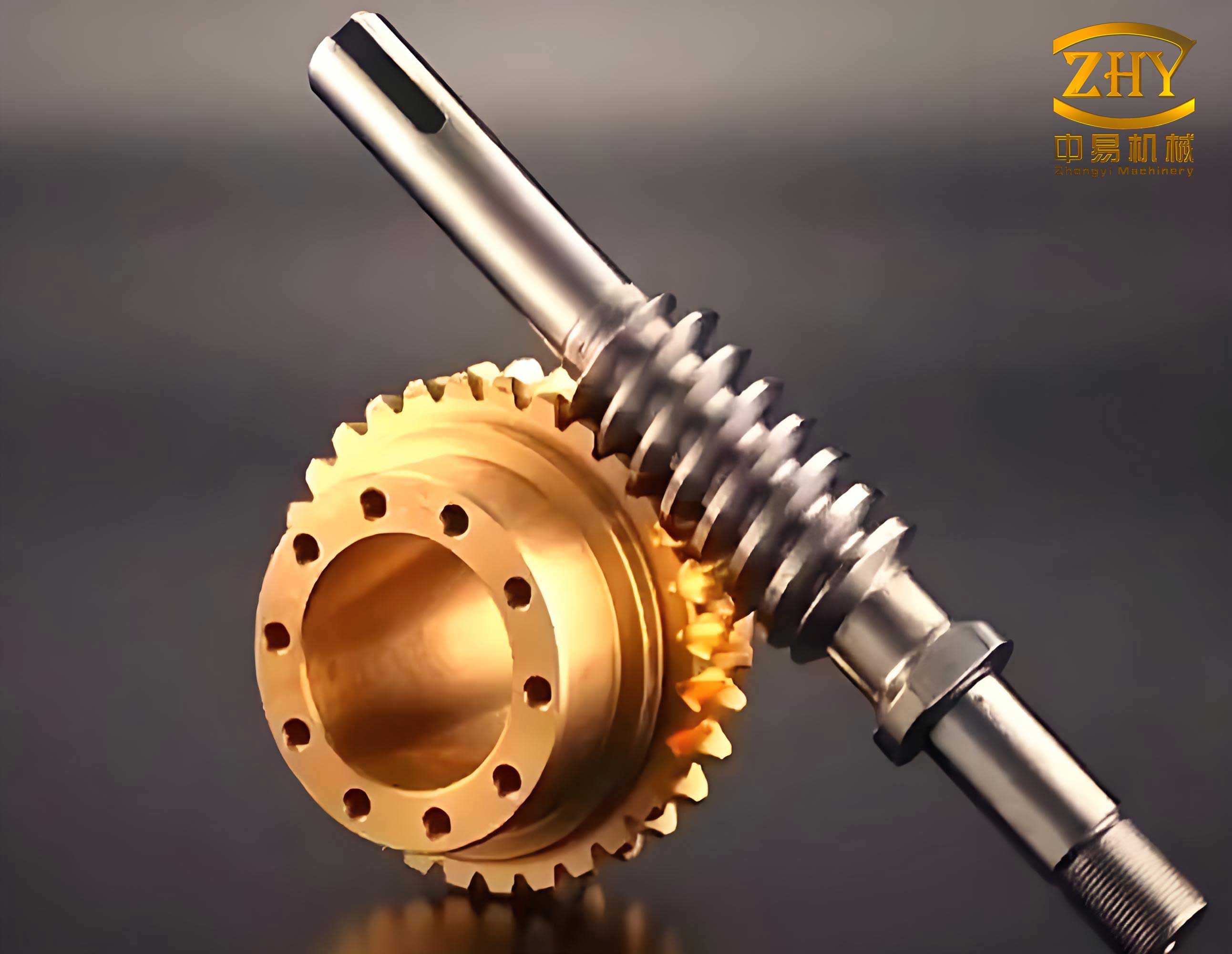
Program Framework and Environment Management
The parametric drawing program for screw gears follows a structured workflow, as illustrated in the diagram below. The process begins with the user selecting the desired gear type, proceeds through a parameter input dialog, executes the underlying mathematical model, and finally renders the graphical output directly into the AutoCAD drawing space.
The logical sequence is: User Selection -> Dialog Display & Input -> Mathematical Model Computation -> Graphical Generation. This structured flow ensures a user-friendly and reliable experience.
A critical consideration when developing tools for use within existing assembly drawings is the preservation of the host drawing’s environment. The program must not permanently alter settings like layers, object snaps, or dimension styles. Therefore, a key part of the program’s framework involves careful state management. Before executing any drawing commands, the program stores the current states of critical system variables. It then temporarily sets these variables to values optimal for the parametric generation process—for instance, turning off object snaps to prevent unintended point acquisitions. Crucially, after the geometry is drawn, the program restores all variables to their original states. This non-destructive behavior is essential for seamless integration into a designer’s workflow.
Layer handling exemplifies this approach. The program defines logical layers for different line types (e.g., “Thick,” “Center,” “Hidden”). However, instead of blindly setting these layers as current, it first checks for their existence in the host drawing using a function like `(tblobjname “layer” “Thick”)`. If the layer exists, it is activated. If not, the drawing proceeds on the default “0” layer, leaving it to the designer to adjust line properties later. This prevents errors and maintains compatibility with any drawing standard.
User Interface: Dialog Design and Menu Integration
To provide an intuitive interface for parameter input, I designed a Dialog Control Language (DCL) file. DCL allows for the creation of custom dialog boxes within AutoCAD. The dialog for the standard cylindrical screw gears is built as a tree structure of tiles (controls), primarily using `edit_box` for data entry and `button` for actions.
The dialog requests the fundamental parameters needed to define a pair of screw gears:
- Module (m): The basic size parameter for the gear teeth.
- Number of Worm Threads (z1): Typically 1, 2, 3, or 4.
- Number of Worm Wheel Teeth (z2).
- Diameter Factor (q): A key parameter relating the worm’s pitch diameter to its module.
- Rotation Angle: Allows the user to rotate the entire generated assembly.
- Insertion Point (X, Y): The center point for the worm in the drawing.
- Wheel Bore Diameter and Keyway Dimensions: For detailing the worm wheel hub.
The DCL definition structures these controls logically, grouping the insertion point coordinates together in a `boxed_column`. A “Pick Point<” button is also provided, linked to an action that lets the user click a point in the drawing area to populate the X and Y fields automatically.
To manage different types of screw gears (e.g., standard cylindrical, double-enveloping, hourglass), I implemented a custom menu system. This is achieved by creating a Custom User Interface (CUI) file. The CUI defines a top-level menu item, “Screw Gears,” with cascading submenus for different gear and worm types. Each menu item is linked to the specific AutoLISP function that drives its respective parametric drawing routine. The user simply loads this CUI file via the `CUILOAD` command, and the custom menu appears, offering a clear, graphical way to launch the appropriate drawing program for the required screw gears configuration.
The Mathematical Model: Parameterizing Screw Gears Geometry
The heart of any parametric drawing system is its mathematical model. For screw gears, the user-input parameters are used to calculate every necessary dimension for both the worm and the worm wheel. The following formulas, based on standard gear design principles, form the core of this calculation engine.
Primary Calculated Parameters:
The lead angle ($\gamma$) and center distance ($a$) are fundamental derived values:
$$
\gamma = \arctan\left(\frac{z_1 \cdot m}{d_1}\right) = \arctan\left(\frac{z_1}{q}\right)
$$
$$
a = \frac{m(q + z_2)}{2}
$$
Where $d_1 = m \cdot q$ is the pitch diameter of the worm.
Worm Dimensions:
The worm’s critical diameters and length are calculated as follows:
$$
\begin{align*}
\text{Addendum Height, } h_{a1} &= m \\
\text{Dedendum Height, } h_{f1} &= 1.2m \\
\text{Tip Diameter, } d_{a1} &= d_1 + 2h_{a1} = m(q + 2) \\
\text{Root Diameter, } d_{f1} &= d_1 – 2h_{f1} = m(q – 2.4)
\end{align*}
$$
The length ($L$) of the threaded portion depends on the number of threads:
$$
L = \begin{cases}
(11 + 0.06z_2)m & \text{for } z_1 = 1, 2 \\
(12.5 + 0.09z_2)m & \text{for } z_1 = 3, 4
\end{cases}
$$
Worm Wheel Dimensions:
Similarly, the worm wheel’s key dimensions are derived:
$$
\begin{align*}
\text{Pitch Diameter, } d_2 &= m \cdot z_2 \\
\text{Tip Diameter, } d_{a2} &= d_2 + 2h_{a1} = m(z_2 + 2) \\
\text{Root Diameter, } d_{f2} &= d_2 – 2h_{f1} = m(z_2 – 2.4) \\
\text{Throat Diameter, } d_{t} &= d_2 + 2h_{a1} = m(z_2 + 2) \quad \text{(For standard cylindrical worms)} \\
\text{Outer Diameter, } d_{e2} &\approx d_{a2} + m
\end{align*}
$$
The face width ($b$) of the worm wheel is:
$$
b \approx 0.73 \cdot d_{a1} \quad \text{(for } z_1 \leq 3\text{)}
$$
These calculations are performed automatically within the AutoLISP program after the user inputs the basic parameters. The results are stored in variables that are then used by the drawing functions to determine the coordinates of every point, line, and arc. The table below summarizes the primary input and key calculated parameters for the screw gears model.
| Parameter Symbol | Description | Input/Calculated |
|---|---|---|
| $m$ | Axial Module (Worm), Transverse Module (Wheel) | Input |
| $z_1$ | Number of Worm Threads (Starts) | Input |
| $z_2$ | Number of Worm Wheel Teeth | Input |
| $q$ | Worm Diameter Factor ($q = d_1 / m$) | Input |
| $\gamma$ | Lead Angle | Calculated: $\arctan(z_1 / q)$ |
| Center Distance | Calculated: $m(q + z_2)/2$ | |
| $d_{a1}, d_{f1}$ | Worm Tip and Root Diameters | Calculated |
| $d_{a2}, d_{f2}$ | Wheel Tip and Root Diameters | Calculated |
Drawing Functions and AutoLISP Implementation
With all dimensions calculated, the program proceeds to generate the graphics. The drawing is typically composed of two primary views: a front view (showing the worm’s profile and the wheel’s side view) and a side sectional view (cutting through the wheel’s axis to show engagement). The AutoLISP code achieves this through a series of specific functions.
1. Point Calculation Functions:
The `polar` function is indispensable. It calculates the coordinates of a new point based on a known base point, an angle, and a distance. This is used repeatedly to construct the geometry from the calculated dimensions. For example, finding the top of a worm tooth from its center point `p0`:
(setq p_tip (polar p0 (/ pi 2.0) (/ d_a1 2.0)))
This sets variable `p_tip` to a point at an angle of 90 degrees (π/2) from `p0`, at a distance equal to the worm’s tip radius.
2. AutoCAD Command Invocation:
The `command` function is used to send instructions directly to AutoCAD, just as a user would type them.
- Drawing Entities:
(command "line" p1 p2 p3 "c")draws connected lines from p1 to p2 to p3 and closes the shape.
(command "circle" center_pt "d" diameter)draws a circle by specifying its center and diameter.
(command "arc" start_pt second_pt end_pt)creates an arc through three points, useful for tooth profiles. - Editing Operations:
(command "trim" boundary_pt "" object_pt "")trims an object using a selected boundary. - Hatching:
(command "bhatch" "p" "ansi31" scale angle pick_pt "")applies a hatch pattern (e.g., ANSI31 for sectional views) to a closed boundary defined by `pick_pt`.
3. Dialog and Data Handling Functions:
These functions manage the user interface.
(load_dialog "path/to/file.dcl")loads the DCL file.(new_dialog "dialog_name" dialog_id)initializes a specific dialog.(action_tile "key" "(function_to_call)")links a button press or other tile event to a specific AutoLISP function.(get_tile "key")retrieves the text value from an edit box, and(setq var (atof (get_tile "key")))converts that text to a floating-point number and stores it in a variable.
The main program orchestrates these elements: it loads and displays the dialog, manages the user interaction, extracts and validates the input data, calls the calculation engine, manages the drawing environment, executes the sequence of drawing commands for each view, and finally restores the original environment. The table below lists the core AutoLISP functions used in this parametric drawing program for screw gears.
| Function Category | Example Function | Purpose in Screw Gears Program |
|---|---|---|
| Geometric Calculation | `polar`, `angle`, `distance` | Compute coordinates for gear profiles, centers, and key points. |
| AutoCAD Command | `command` | Execute LINE, CIRCLE, TRIM, BHATCH, etc., to draw geometry. |
| Dialog Management | `load_dialog`, `new_dialog`, `done_dialog` | Load, display, and close the parameter input dialog box. |
| Data Handling | `get_tile`, `set_tile`, `action_tile` | Get user input from dialog tiles, set default values, define button actions. |
| System Variable Control | `getvar`, `setvar` | Store and restore system variables like OSMODE and CLAYER. |
| Table & Symbol Check | `tblobjname` | Check if a layer exists before setting it current. |
Output and Advantages
Upon execution with a valid set of parameters, the program generates a fully detailed, dimensionally accurate pair of screw gears in the AutoCAD drawing space. The output includes the worm and worm wheel in pre-defined arrangement views, with different line types on their appropriate layers (where available). The generated geometry is ready for immediate use within the larger assembly drawing. The designer can then proceed to add dimensions, annotations, or make minor adjustments as required by the specific design context, having saved the substantial time that would have been spent on manual drafting.
The advantages of this parametric approach for drawing screw gears in assemblies are clear. Firstly, it drastically improves efficiency. A drawing that might take 30-60 minutes to draft manually can be generated in seconds. This accelerates the overall product development cycle. Secondly, it ensures dimensional accuracy and consistency. All generated drawings are based on the same mathematical model, eliminating human calculation and drafting errors. Thirdly, it offers flexibility. A single program can produce an infinite variety of screw gears sizes simply by changing the input parameters, making it an invaluable tool for exploratory design or for creating families of similar products. Finally, because it is built on AutoCAD and AutoLISP, it is a cost-effective and accessible solution that leverages software already standard in most mechanical design environments, requiring no additional licensing for specialized CAD plugins.
Conclusion and Potential Extensions
This exploration demonstrates a practical and effective method for integrating parametric design of standard components into the assembly drawing workflow using AutoLISP. The development of a parametric drawing tool for screw gears highlights how routine, repetitive drafting tasks can be automated, freeing the designer to focus on higher-level design challenges. The implementation, involving dialog boxes for user input, a robust mathematical model, and careful drawing environment management, provides a template that can be adapted for many other standard mechanical components, such as bearings, fasteners, seals, and other gear types.
The potential for extension is significant. The mathematical model could be enhanced to include strength calculations based on input power and material properties, automatically selecting appropriate module and face width. The graphical output could be extended to include 3D solid models using AutoLISP’s access to AutoCAD’s 3D modeling commands. Furthermore, the program could be integrated with external databases or Excel files to pull standard parameter sets, creating a comprehensive parts library system within AutoCAD. By adopting and extending this parametric philosophy, design departments can build powerful, customized toolkets that significantly enhance productivity and ensure drawing quality for complex assemblies involving components like screw gears.